AI connection (MCP)
How the assistant works with your workspace: what it sees, what it does itself and where the boundaries are.
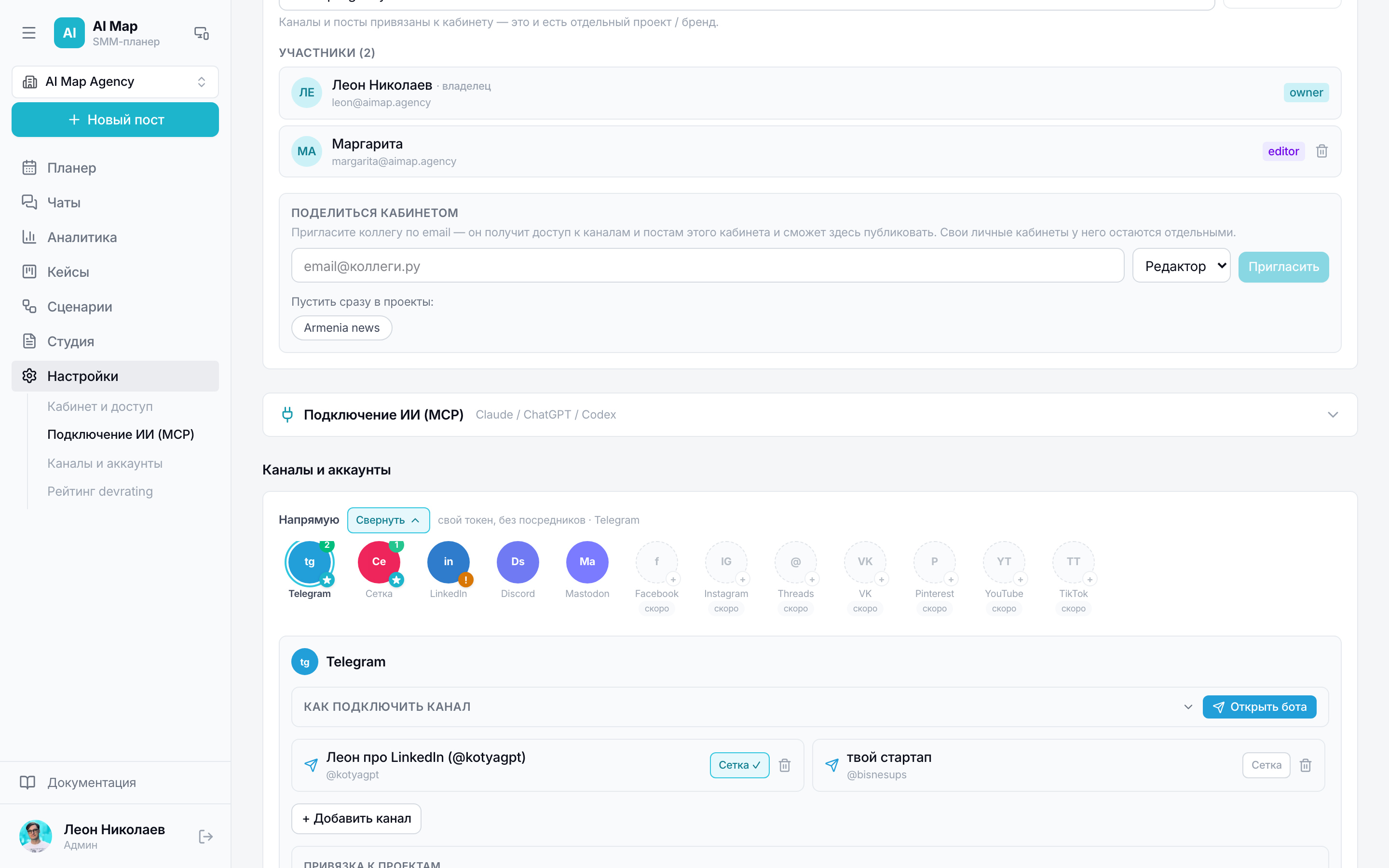
Section in the service: /settings#mcp
MCP is a way to give your assistant direct access to the service. Not “tell it what to write” but “it looks at the plan itself, writes the post, puts it into the grid and brings a summary”. Works with Claude, ChatGPT and other clients that understand MCP.
How to connect
- 1Open Settings → AI connection and copy the server address.
- 2Add it to the assistant as an MCP server.
- 3On the first request a sign-in page opens — sign in with your service email and password.
- 4The assistant remembers the access; signing in again is needed only if you revoke it.
Sign-in happens on our page, the password stays with us and isn't passed to the assistant. Access is revoked by changing the password.
How it works
The assistant comes with your token, so it works strictly on your behalf: it sees the same workspaces and projects as you, and nothing more.
On the site the active workspace lives in the interface, but the assistant has no interface — so the chosen project is remembered on your account and changed by command. First thing in a session it asks for the project list and says which one it's working in: that way posts don't go to the wrong place.
What it can do
- Content: view and create posts, change them, copy, attach media by link or file, manage articles.
- Calendar: see the plan for dates, put a post into a free slot, create and clean grid slots.
- Scenarios: view trees, run them and see unfinished runs.
- Cases: create, update, link publications to them.
- Analytics: summaries by breakdown, statistics snapshots, report data and insights, the company's business context.
- Channels and projects: the project's channel list with text limits, switching projects.
- Documentation: a list of sections with links, so it sends you the exact address instead of retelling.
- Chats: the conversation queue, replies and notes, contacts and merging duplicates, CRM cards and statuses; deals — create_deal, checking a list of people — check_contacts.
- Chains: create_thread_chain and link_thread_chain assemble a series of posts for Threads — the first part as a post, the rest as replies.
- Workspace documents: client details, an act for a period, a development annex, the document list (set_client_requisites, issue_act, create_annex, list_documents).
- Agents: build an AI agent entirely — instructions, knowledge base, actions, tests; the assistant takes the build rules via the agents_guide tool. More in the “AI agents” section.
Boundaries and error protection
- Other people's workspaces are inaccessible: access is checked against your membership on every request.
- Publishing can be forbidden entirely — then the assistant only prepares posts, and a human sends them.
- A channel key from another project returns an error with the owner's name rather than silently publishing to the wrong place.
- The assistant warns about text limits in advance: it knows how many characters each platform accepts.
- In Telegram with several channels it must choose a channel explicitly — there's no “to all”.
- LinkedIn: if the project has a channel via Zernio, the direct linkedin_personal key is replaced with it — so the post gets the platform's full statistics.
How to talk to it
Simple, concrete tasks work best: “what's going out this week”, “make a post about case X for LinkedIn and Telegram, put it in the nearest slot”, “build a 30-day summary by channel”, “run the breakdown scenario on yesterday's post”.
The assistant isn't an autopilot: it prepares and shows, the decision stays with you. That's exactly why the right to publish is a separate parameter.